Connect to Company Network
What you need
Internet access and a company email ending in @hw-etech.com.cn.
Windows setup
- Install and open Tailscale for Windows.
- Press the Windows key, type PowerShell, and open Windows PowerShell. Paste this command and press Enter:
tailscale login --login-server=https://headscale.ao-li.com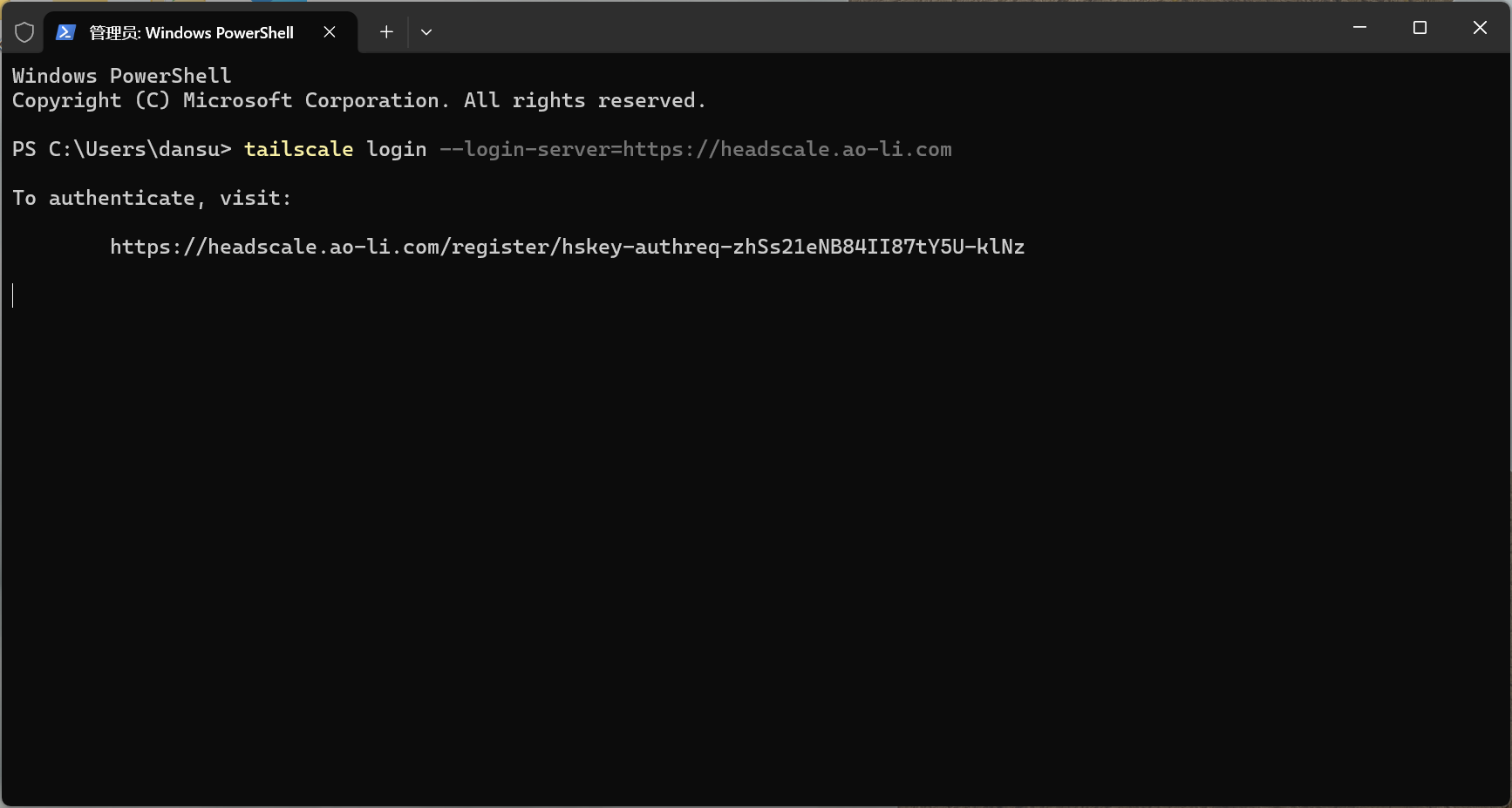
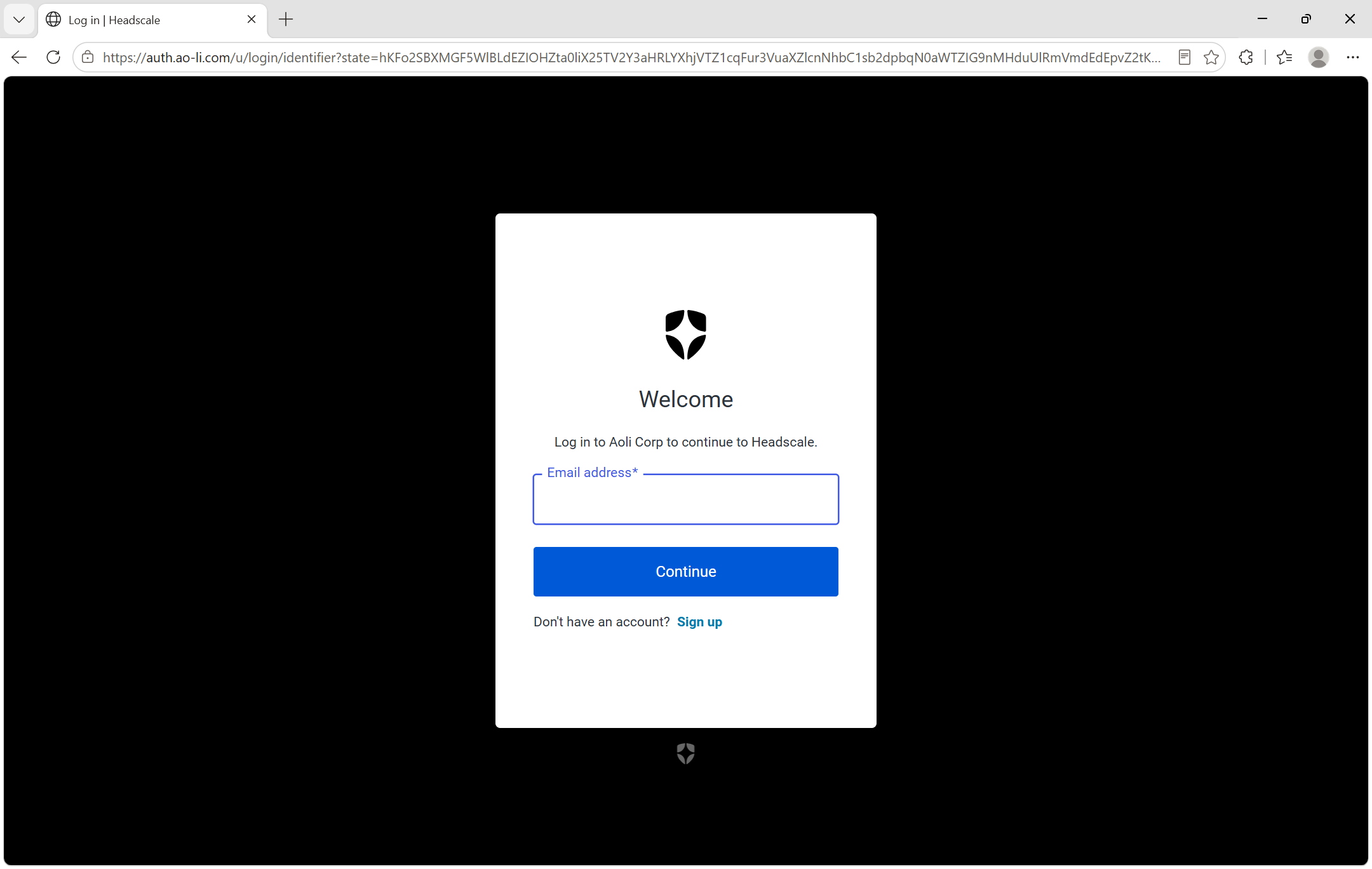
- Hold Ctrl and click the login link shown in PowerShell. If it does not open, copy the full link into your browser. Then sign in with your company email at auth.ao-li.com.
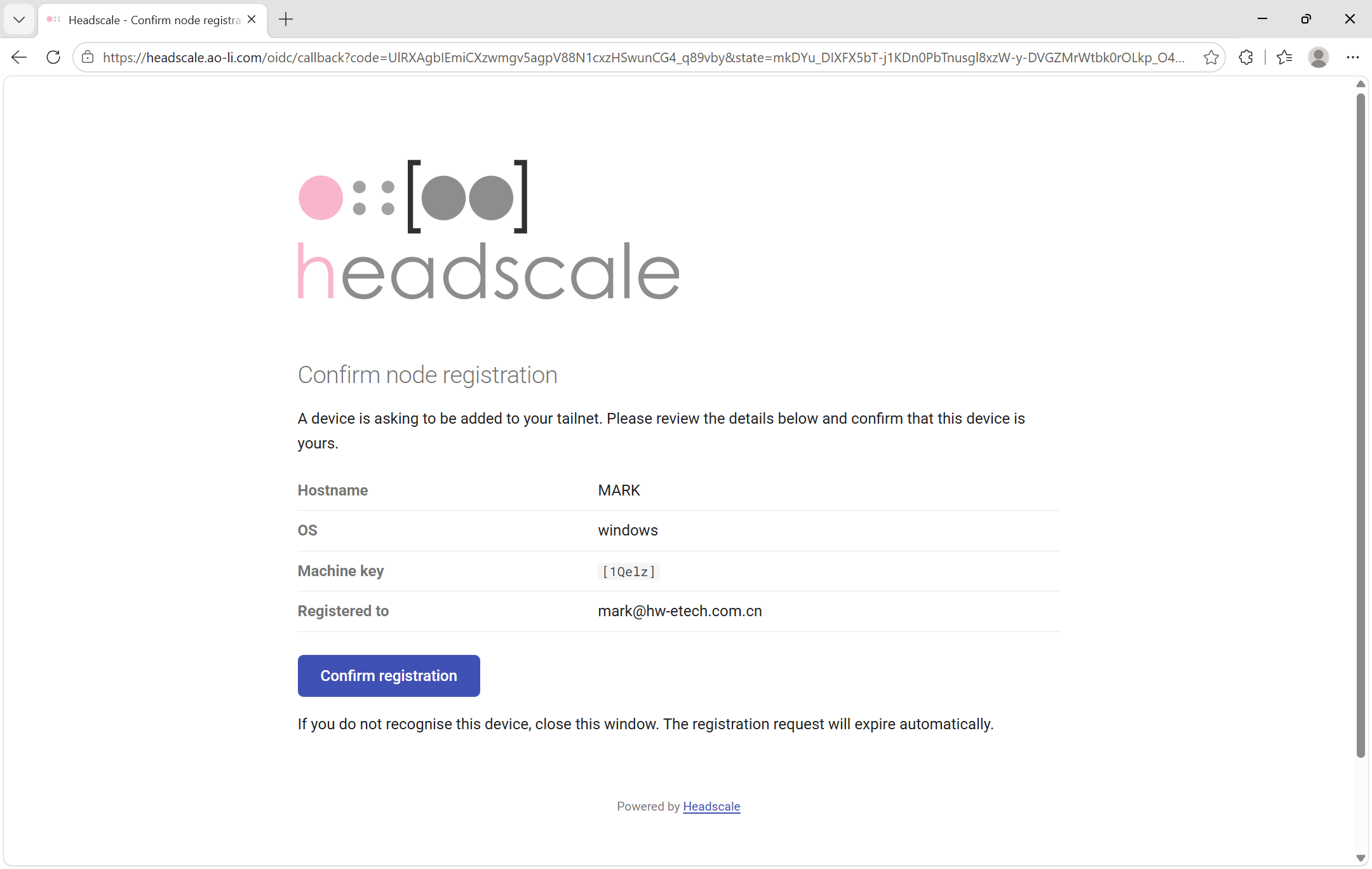
- Check that the device and email are yours, then click Confirm registration.
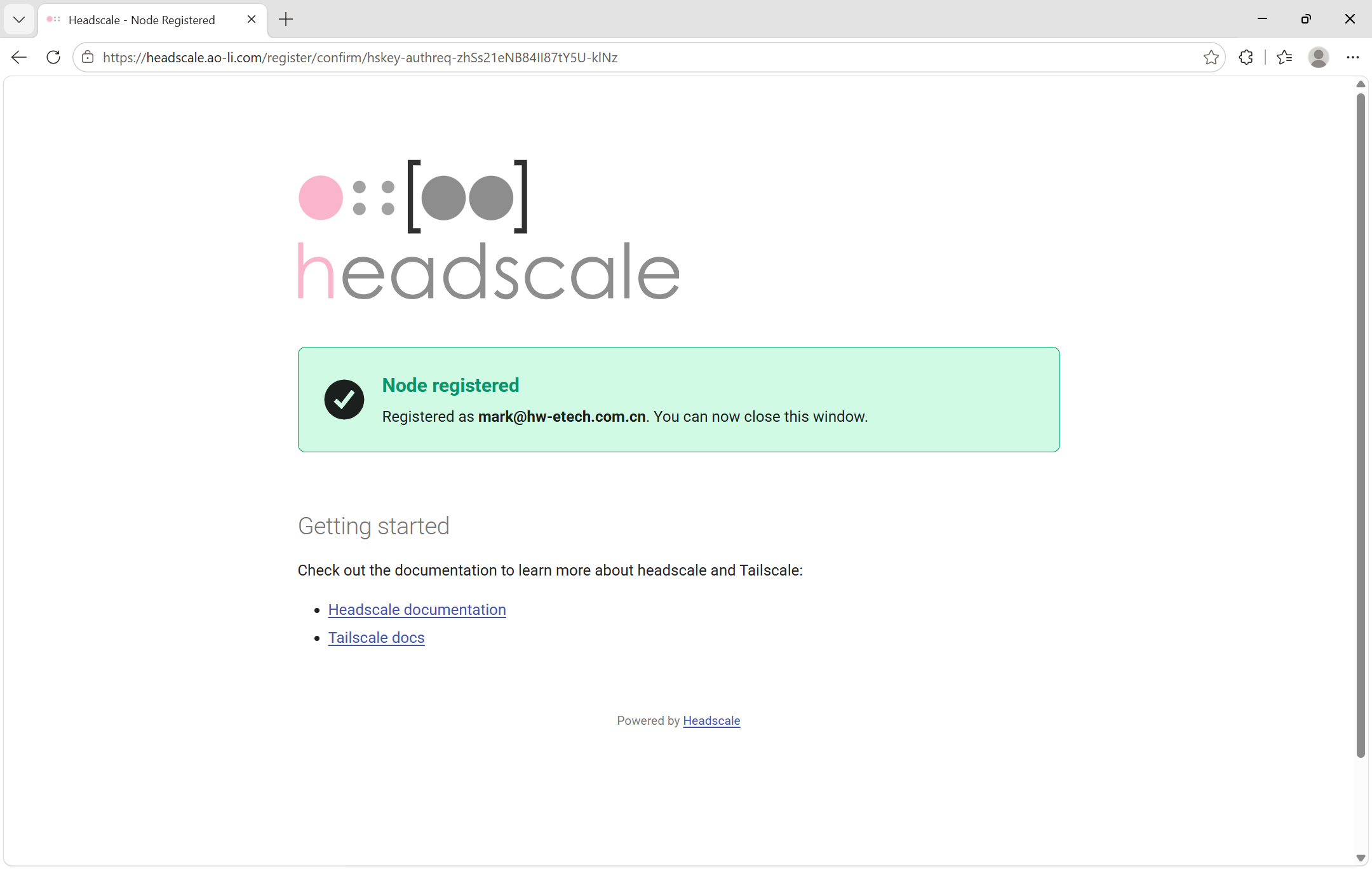
- When Node registered appears, close the browser window.
- Return to Tailscale. Select Connect if needed, then check that it shows Connected.
Check the connection
On Windows, run in PowerShell:
tailscale ping 100.64.0.1A pong response means you can reach the server.
Next time
Open Tailscale, select your company email in the account menu, and click Connect if needed. Keep it connected while using company systems.
Need help?
- Command not found: Check that Tailscale is installed and running, then reopen PowerShell.
- Wrong sign-in page: Run the full login command above.
- Sign-in failed: Use your company email and complete any email verification.
- No response: Check your internet connection, sign-in email, and Tailscale connection status.
- Still stuck: Send IT the error message and affected service address.